


Google Drive connector
OAuth 2.0Files & DocumentsConnect to Google Drive. Manage files, folders, and sharing permissions
Google Drive connector
-
Install the SDK
Section titled “Install the SDK”Terminal window npm install @scalekit-sdk/nodeTerminal window pip install scalekit -
Set your credentials
Section titled “Set your credentials”Add your Scalekit credentials to your
.envfile. Find values in app.scalekit.com > Developers > API Credentials..env SCALEKIT_ENVIRONMENT_URL=<your-environment-url>SCALEKIT_CLIENT_ID=<your-client-id>SCALEKIT_CLIENT_SECRET=<your-client-secret> -
Set up the connector
Section titled “Set up the connector”Register your Google Drive credentials with Scalekit so it handles the token lifecycle. You do this once per environment.
Dashboard setup steps
Register your Scalekit environment with the Google Drive connector so Scalekit handles the authentication flow and token lifecycle for you. The connection name you create will be used to identify and invoke the connection programmatically. Then complete the configuration in your application as follows:
-
Set up auth redirects
-
In Scalekit dashboard, go to AgentKit > Connections > Create Connection. Find Google Drive and click Create. Click Use your own credentials and copy the redirect URI. It looks like
https://<SCALEKIT_ENVIRONMENT_URL>/sso/v1/oauth/<CONNECTION_ID>/callback.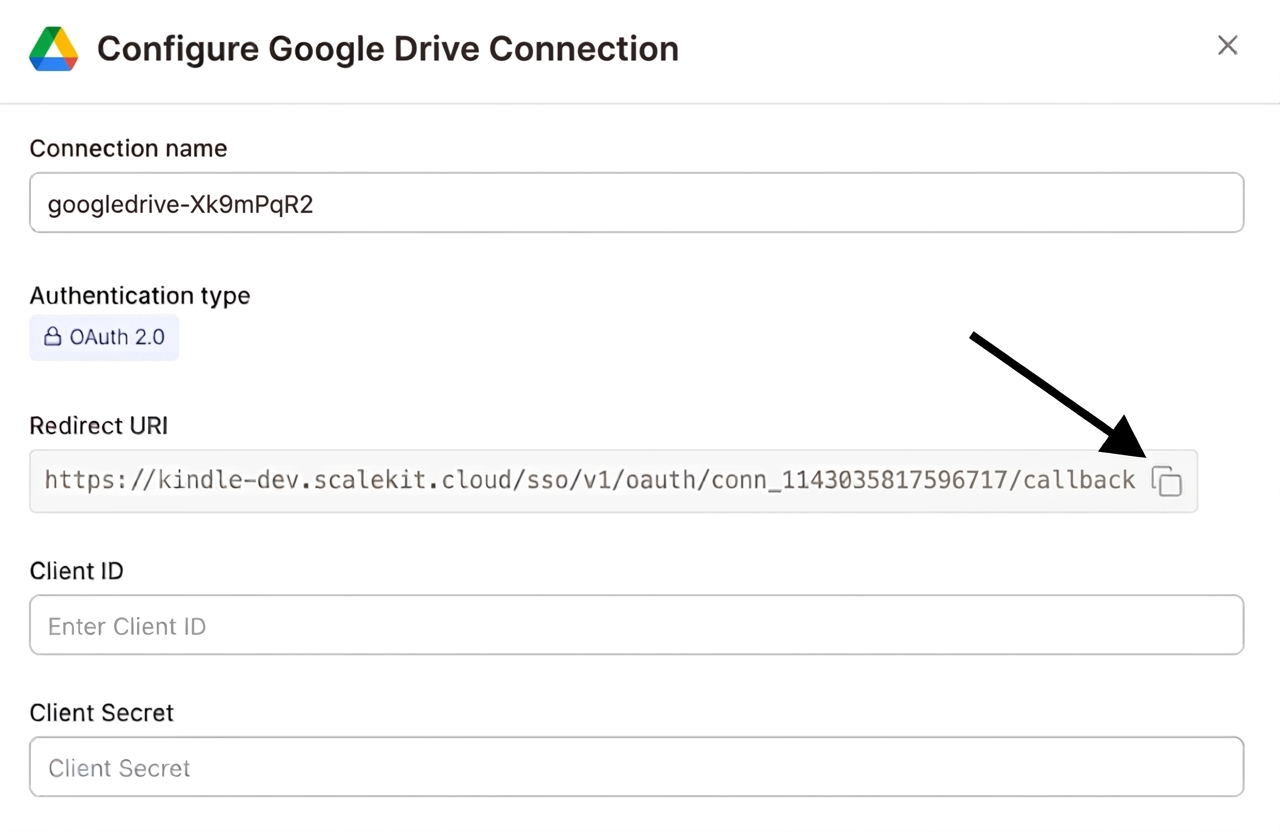
-
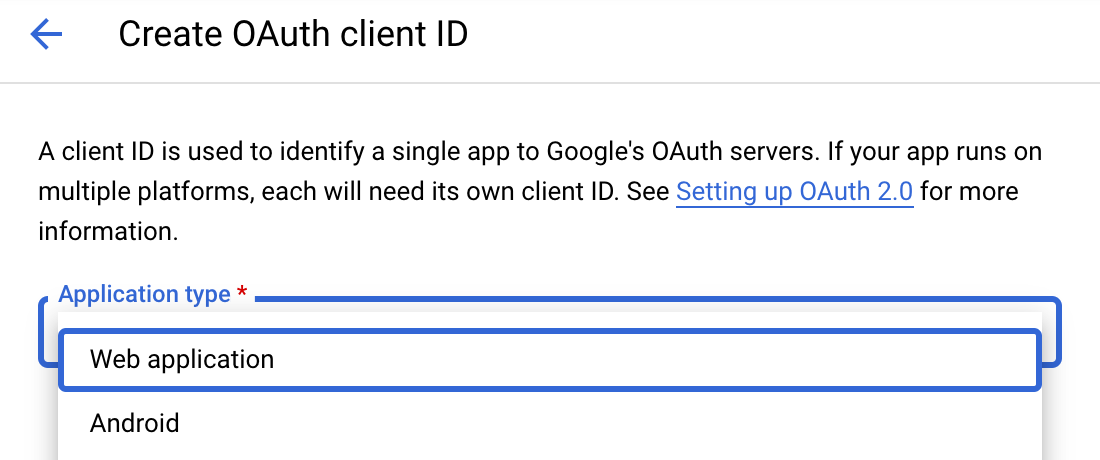
Navigate to Google Cloud Console → APIs & Services → Credentials. Select + Create Credentials, then OAuth client ID. Choose Web application from the Application type menu.
-
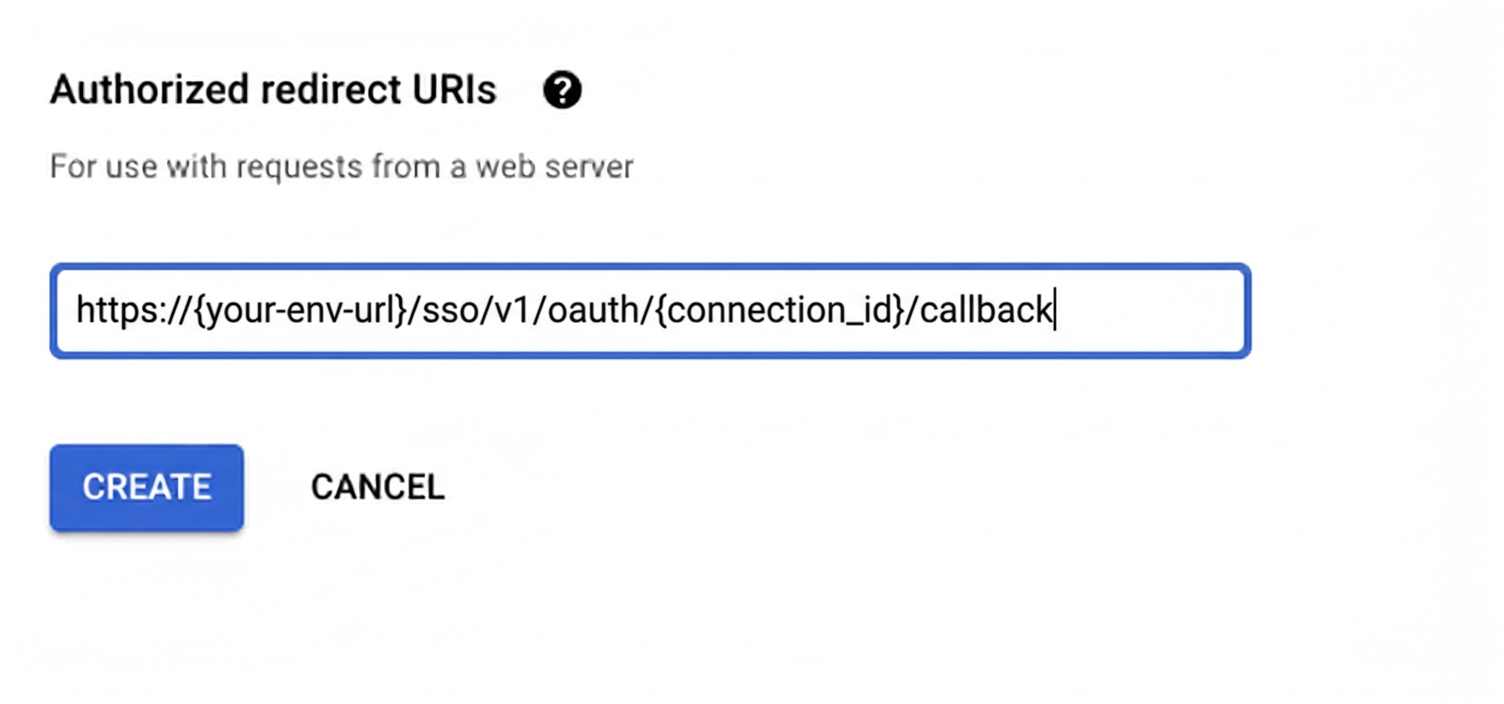
Under Authorized redirect URIs, click + Add URI, paste the redirect URI, and click Create.
-
-
Enable the Google Drive API
- In Google Cloud Console, go to APIs & Services → Library. Search for “Google Drive API” and click Enable.
-
Get client credentials
- Google provides your Client ID and Client Secret after you create the OAuth client ID in step 1.
-
Add credentials in Scalekit
-
In Scalekit dashboard, go to AgentKit > Connections and open the connection you created.
-
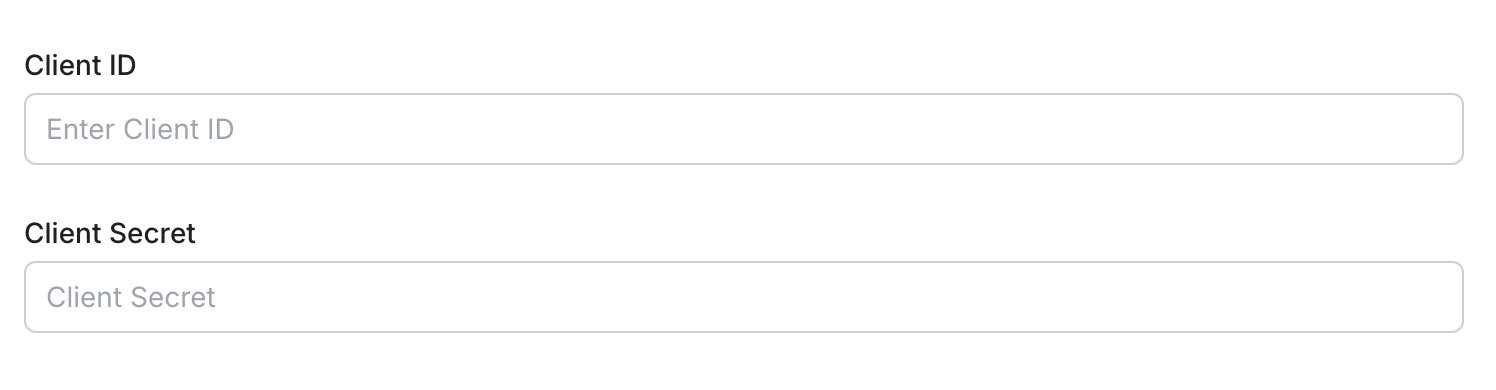
Enter your credentials:
- Client ID (from above)
- Client Secret (from above)
- Permissions (scopes — see Google API Scopes reference)
-
Click Save.
-
-
-
Authorize and make your first call
Section titled “Authorize and make your first call”quickstart.ts import { ScalekitClient } from '@scalekit-sdk/node'import 'dotenv/config'const scalekit = new ScalekitClient(process.env.SCALEKIT_ENV_URL,process.env.SCALEKIT_CLIENT_ID,process.env.SCALEKIT_CLIENT_SECRET,)const actions = scalekit.actionsconst connector = 'googledrive'const identifier = 'user_123'// Generate an authorization link for the userconst { link } = await actions.getAuthorizationLink({ connectionName: connector, identifier })console.log('Authorize Google Drive:', link)process.stdout.write('Press Enter after authorizing...')await new Promise(r => process.stdin.once('data', r))// Make your first callconst result = await actions.executeTool({connector,identifier,toolName: 'googledrive_query_drive_activity',toolInput: {},})console.log(result)quickstart.py import osfrom scalekit.client import ScalekitClientfrom dotenv import load_dotenvload_dotenv()scalekit_client = ScalekitClient(env_url=os.getenv("SCALEKIT_ENV_URL"),client_id=os.getenv("SCALEKIT_CLIENT_ID"),client_secret=os.getenv("SCALEKIT_CLIENT_SECRET"),)actions = scalekit_client.actionsconnection_name = "googledrive"identifier = "user_123"# Generate an authorization link for the userlink_response = actions.get_authorization_link(connection_name=connection_name,identifier=identifier,)print("Authorize Google Drive:", link_response.link)input("Press Enter after authorizing...")# Make your first callresult = actions.execute_tool(tool_input={},tool_name="googledrive_query_drive_activity",connection_name=connection_name,identifier=identifier,)print(result)
What you can do
Section titled “What you can do”Connect this agent connector to let your agent:
- File share, move, copy — Share a file or folder in Google Drive by creating a new permission for a user, group, domain, or anyone
- Query drive activity — Query Google Drive activity to see who viewed, edited, moved, or shared files
- Delete file — Permanently delete a file or folder in Google Drive by its file ID
- Create folder — Create a new folder in Google Drive
- Search files, content — Search for files and folders in Google Drive using query filters like name, type, owner, and parent folder
- Get file metadata — Retrieve metadata for a specific file in Google Drive by its file ID
Common workflows
Section titled “Common workflows”Proxy API call
const result = await actions.request({ connectionName: 'googledrive', identifier: 'user_123', path: '/drive/v3/files', method: 'GET',});console.log(result);result = actions.request( connection_name='googledrive', identifier='user_123', path="/drive/v3/files", method="GET")print(result)Download a file
Download a file from Google Drive by its file ID via the Scalekit proxy.
file_id = "<YOUR_FILE_ID>" # file ID from Drive (visible in the file's URL)output_path = "downloaded.pdf"
response = actions.request( connection_name='googledrive', identifier='user_123', path=f"/drive/v3/files/{file_id}", method="GET", query_params={"alt": "media"},)
with open(output_path, "wb") as f: f.write(response.content)
print(f"Downloaded: {output_path} ({len(response.content):,} bytes)")Upload a file
Upload a file to Google Drive via the Scalekit proxy. Scalekit injects the OAuth token automatically — your app never handles credentials directly.
import mimetypes
file_path = "report.pdf"file_name = "report.pdf"
with open(file_path, "rb") as f: file_bytes = f.read()
mime_type = mimetypes.guess_type(file_path)[0] or "application/octet-stream"
response = actions.request( connection_name='googledrive', identifier='user_123', path="/upload/drive/v3/files", method="POST", query_params={"uploadType": "media", "name": file_name}, form_data=file_bytes, headers={"Content-Type": mime_type},)
file_id = response.json()["id"]print(f"Uploaded: {file_name} (File ID: {file_id})")googledrive_get_file_metadata
Retrieve metadata for a specific file in Google Drive by its file ID. Returns name, MIME type, size, creation time, and more.
| Name | Type | Required | Description |
|---|---|---|---|
fields | string | No | Fields to include in the response |
file_id | string | Yes | The ID of the file to retrieve metadata for |
schema_version | string | No | Optional schema version to use for tool execution |
supports_all_drives | boolean | No | Support shared drives |
tool_version | string | No | Optional tool version to use for execution |
googledrive_search_content
Search inside the content of files stored in Google Drive using full-text search. Finds files where the body text matches the search term.
| Name | Type | Required | Description |
|---|---|---|---|
fields | string | No | Fields to include in the response |
mime_type | string | No | Filter results by MIME type |
page_size | integer | No | Number of files to return per page |
page_token | string | No | Token for the next page of results |
schema_version | string | No | Optional schema version to use for tool execution |
search_term | string | Yes | Text to search for inside file contents |
supports_all_drives | boolean | No | Include shared drives in results |
tool_version | string | No | Optional tool version to use for execution |
googledrive_search_files
Search for files and folders in Google Drive using query filters like name, type, owner, and parent folder.
| Name | Type | Required | Description |
|---|---|---|---|
fields | string | No | Fields to include in the response |
order_by | string | No | Sort order for results |
page_size | integer | No | Number of files to return per page |
page_token | string | No | Token for the next page of results |
query | string | No | Drive search query string |
schema_version | string | No | Optional schema version to use for tool execution |
supports_all_drives | boolean | No | Include shared drives in results |
tool_version | string | No | Optional tool version to use for execution |
Execute a tool
const result = await actions.executeTool({ connector: 'googledrive', identifier: 'user_123', toolName: 'googledrive_get_file_metadata', toolInput: {},});console.log(result);result = actions.execute_tool( connection_name='googledrive', identifier='user_123', tool_name='googledrive_get_file_metadata', tool_input={},)print(result)Google OAuth consent screen verification
Before you use your own Google OAuth credentials in production, understand what end users see on Google’s consent screen when they authorize a connected account.
| Audience type | Consent screen behavior | When to use |
|---|---|---|
| Internal | Shows your App Name and logo from Branding settings | Only users in your Google Workspace or Cloud Identity organization can authorize the connector |
| External | Shows {env_name}.scalekit.dev until Google verifies your app | Any user with a Google account can authorize the connector |
Why External is required for most AgentKit connectors:
- Internal restricts authorization to users in your Google Workspace or Cloud Identity organization. Users with
@gmail.comor other Google accounts outside your organization cannot complete OAuth. - External is required when end users outside your organization authorize tool access through connected accounts.
- Organization-managed OAuth clients follow the same rules as personal or developer OAuth clients. Switching to an org-owned client does not bypass Google verification.
- Until Google completes verification of your External app, users see
scalekit.devon the consent screen. After verification, your App Name and logo appear.
During development:
- Add Test users under APIs & Services → OAuth consent screen while publishing status is Testing.
- On unverified apps, users can click Advanced → Go to app (unsafe) to proceed during testing.
- Google Workspace admins may need to allowlist your OAuth client.
For Google’s verification requirements and timeline, refer to Google’s OAuth consent screen verification guide.
Tool list
Section titled “Tool list”Use the exact tool names from the Tool list below when you call execute_tool. If you’re not sure which name to use, list the tools available for the current user first.
googledrive_copy_file#Create a copy of an existing file in Google Drive. Optionally rename the copy, place it in a different folder, or add a description. Uses OAuth credentials.6 params
Create a copy of an existing file in Google Drive. Optionally rename the copy, place it in a different folder, or add a description. Uses OAuth credentials.
file_idstringrequiredID of the file to copydescriptionstringoptionalOptional description for the copied filenamestringoptionalName for the copied file. If omitted, the copy is named 'Copy of <original name>'.parent_folder_idstringoptionalID of the destination folder for the copy. If omitted, the copy is placed in the same folder as the original.schema_versionstringoptionalOptional schema version to use for tool executiontool_versionstringoptionalOptional tool version to use for executiongoogledrive_create_folder#Create a new folder in Google Drive. Optionally place it inside a parent folder and add a description. Uses OAuth credentials.5 params
Create a new folder in Google Drive. Optionally place it inside a parent folder and add a description. Uses OAuth credentials.
namestringrequiredName of the new folderdescriptionstringoptionalOptional description for the new folderparent_folder_idstringoptionalID of the parent folder to create this folder inside. If omitted, the folder is created in the root of My Drive.schema_versionstringoptionalOptional schema version to use for tool executiontool_versionstringoptionalOptional tool version to use for executiongoogledrive_delete_file#Permanently delete a file or folder in Google Drive by its file ID. This action cannot be undone. Uses OAuth credentials.4 params
Permanently delete a file or folder in Google Drive by its file ID. This action cannot be undone. Uses OAuth credentials.
file_idstringrequiredID of the file or folder to deleteschema_versionstringoptionalOptional schema version to use for tool executionsupports_all_drivesbooleanoptionalWhether the request supports files in shared drivestool_versionstringoptionalOptional tool version to use for executiongoogledrive_get_file_metadata#Retrieve metadata for a specific file in Google Drive by its file ID. Returns name, MIME type, size, creation time, and more.5 params
Retrieve metadata for a specific file in Google Drive by its file ID. Returns name, MIME type, size, creation time, and more.
file_idstringrequiredThe ID of the file to retrieve metadata forfieldsstringoptionalFields to include in the responseschema_versionstringoptionalOptional schema version to use for tool executionsupports_all_drivesbooleanoptionalSupport shared drivestool_versionstringoptionalOptional tool version to use for executiongoogledrive_move_file#Move a file or folder to a different location in Google Drive by updating its parent folder. Optionally rename the file during the move. Uses OAuth credentials.6 params
Move a file or folder to a different location in Google Drive by updating its parent folder. Optionally rename the file during the move. Uses OAuth credentials.
file_idstringrequiredID of the file or folder to movenew_parent_idstringrequiredID of the destination folder to move the file intonamestringoptionalOptional new name for the file after moving. If omitted, the file keeps its current name.old_parent_idstringoptionalID of the current parent folder to remove the file from. Providing this ensures a clean move without the file appearing in multiple folders.schema_versionstringoptionalOptional schema version to use for tool executiontool_versionstringoptionalOptional tool version to use for executiongoogledrive_query_drive_activity#Query Google Drive activity to see who viewed, edited, moved, or shared files. Useful for auditing and compliance. Uses OAuth credentials.8 params
Query Google Drive activity to see who viewed, edited, moved, or shared files. Useful for auditing and compliance. Uses OAuth credentials.
ancestor_namestringoptionalRestrict activity to items under this folder. Format: 'items/FOLDER_ID'. Example: 'items/0B_abc123xyz'consolidation_strategystringoptionalHow related activity is grouped. 'none' means each action is its own activity; 'legacy' consolidates similar actions. Valid values: 'none', 'legacy'.filterstringoptionalFilter string to narrow activity results. Example: "time >= \"2026-01-01T00:00:00Z\""item_namestringoptionalRestrict activity to a specific file or folder. Format: 'items/FILE_ID'. Example: 'items/1BxiMVs0XRA5nFMdKvBdBZjgmUUqptlbs74OgVE2upms'page_sizeintegeroptionalMaximum number of activity records to return per page. Max 100.page_tokenstringoptionalToken for the next page of results from a previous response.schema_versionstringoptionalOptional schema version to use for tool executiontool_versionstringoptionalOptional tool version to use for executiongoogledrive_search_content#Search inside the content of files stored in Google Drive using full-text search. Finds files where the body text matches the search term.8 params
Search inside the content of files stored in Google Drive using full-text search. Finds files where the body text matches the search term.
search_termstringrequiredText to search for inside file contentsfieldsstringoptionalFields to include in the responsemime_typestringoptionalFilter results by MIME typepage_sizeintegeroptionalNumber of files to return per pagepage_tokenstringoptionalToken for the next page of resultsschema_versionstringoptionalOptional schema version to use for tool executionsupports_all_drivesbooleanoptionalInclude shared drives in resultstool_versionstringoptionalOptional tool version to use for executiongoogledrive_search_files#Search for files and folders in Google Drive using query filters like name, type, owner, and parent folder.8 params
Search for files and folders in Google Drive using query filters like name, type, owner, and parent folder.
fieldsstringoptionalFields to include in the responseorder_bystringoptionalSort order for resultspage_sizeintegeroptionalNumber of files to return per pagepage_tokenstringoptionalToken for the next page of resultsquerystringoptionalDrive search query stringschema_versionstringoptionalOptional schema version to use for tool executionsupports_all_drivesbooleanoptionalInclude shared drives in resultstool_versionstringoptionalOptional tool version to use for execution