


Google Looker connector
OAuth 2.0AnalyticsDatabasesProductivityConnect to Google Looker or self-hosted Looker Core. Browse dashboards, run Looks, query LookML models, and access BI data programmatically.
Google Looker connector
-
Install the SDK
Section titled “Install the SDK”Terminal window npm install @scalekit-sdk/nodeTerminal window pip install scalekit -
Set your credentials
Section titled “Set your credentials”Add your Scalekit credentials to your
.envfile. Find values in app.scalekit.com > Developers > API Credentials..env SCALEKIT_ENVIRONMENT_URL=<your-environment-url>SCALEKIT_CLIENT_ID=<your-client-id>SCALEKIT_CLIENT_SECRET=<your-client-secret> -
Set up the connector
Section titled “Set up the connector”Register your Google Looker credentials with Scalekit so it handles the token lifecycle. You do this once per environment.
Dashboard setup steps
Register your Scalekit environment with the Google Looker connector so Scalekit handles the OAuth flow and token lifecycle for you. The connection name you create will be used to identify and invoke the connection programmatically.
-
Create a Google Looker instance
Google Looker (Google Cloud core) runs as a managed service in your Google Cloud project. You must create an instance before setting up OAuth credentials.
-
Go to Google Cloud Console and select or create a project.
-
In the navigation menu, go to Looker (or search for “Looker” in the search bar).
-
Click Create Instance and follow the setup wizard. Note your instance hostname — it will look like
your-company.cloud.looker.com. You will need this when adding connected accounts in Scalekit.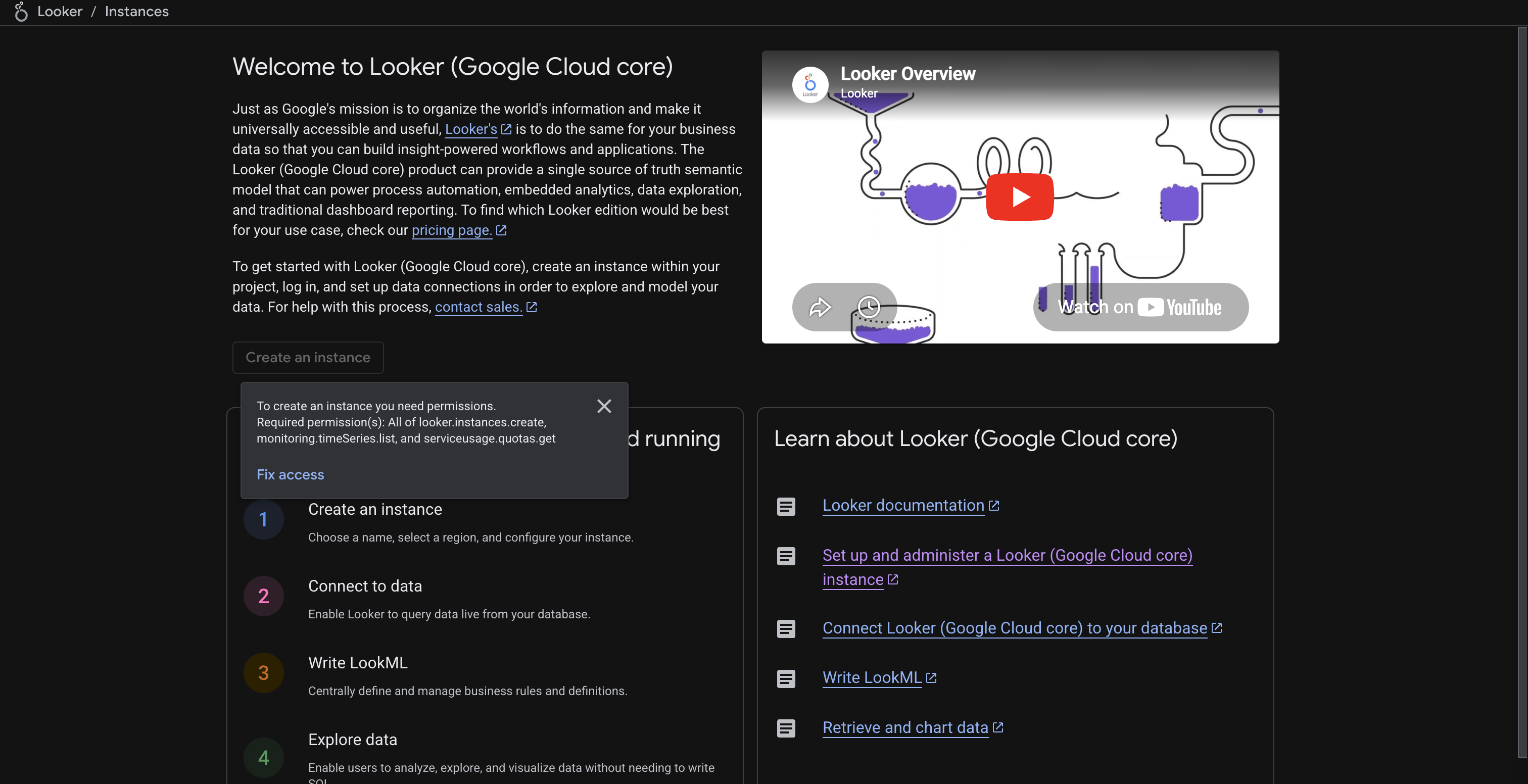
-
-
Create OAuth credentials in Google Cloud Console
Google Looker uses Google OAuth 2.0. You need OAuth client credentials from the same Google Cloud project that hosts your Looker instance.
-
In Google Cloud Console, go to APIs & Services > Credentials.
-
Click Create Credentials > OAuth client ID.
-
Select Web application as the application type.
-
Copy the redirect URI from Scalekit (see next step) and paste it under Authorized redirect URIs.
-
Click Create. Copy the Client ID and Client Secret.
-
-
Add credentials in Scalekit
-
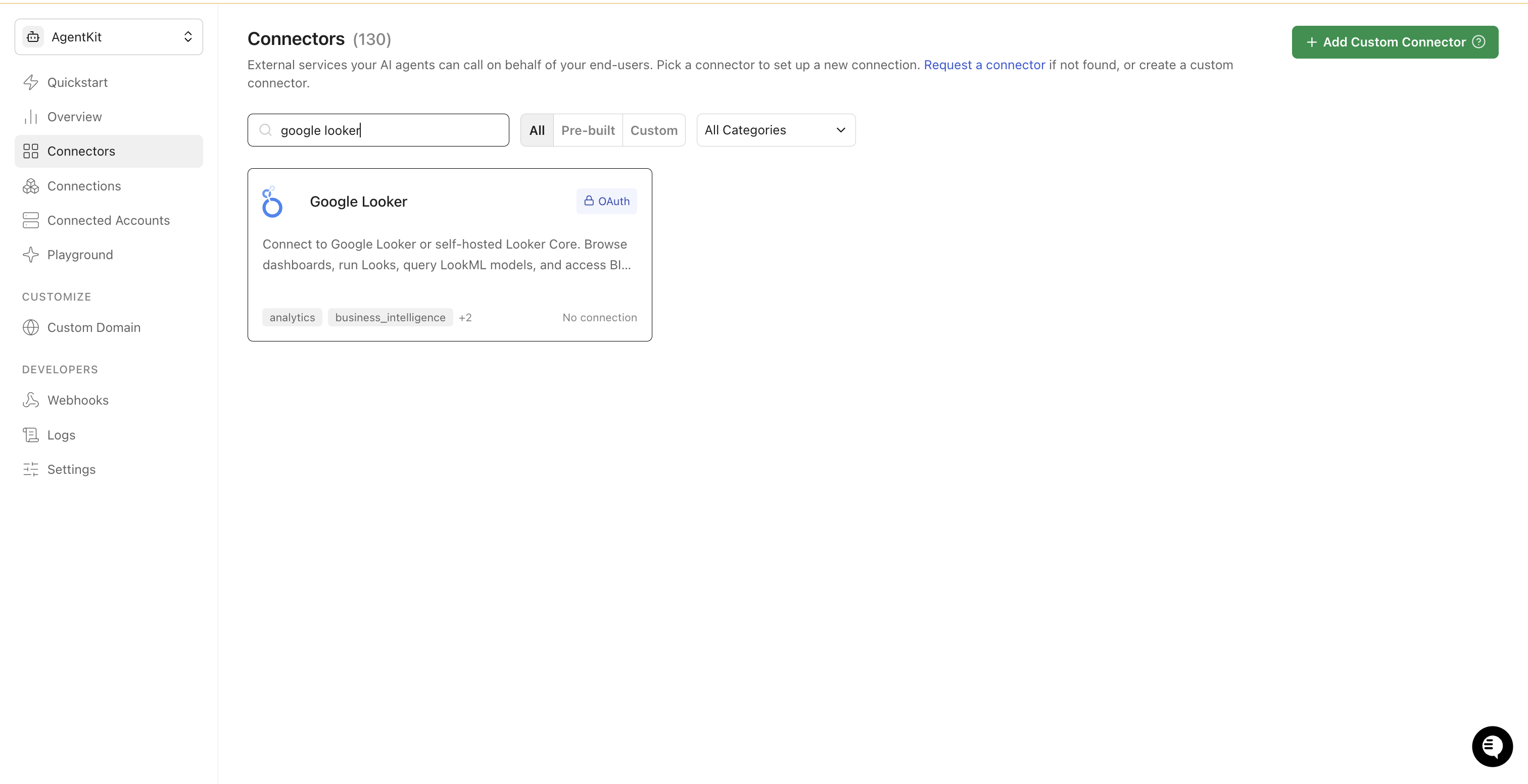
In Scalekit dashboard, go to AgentKit > Connections > Create Connection. Search for Google Looker and click Create.
-
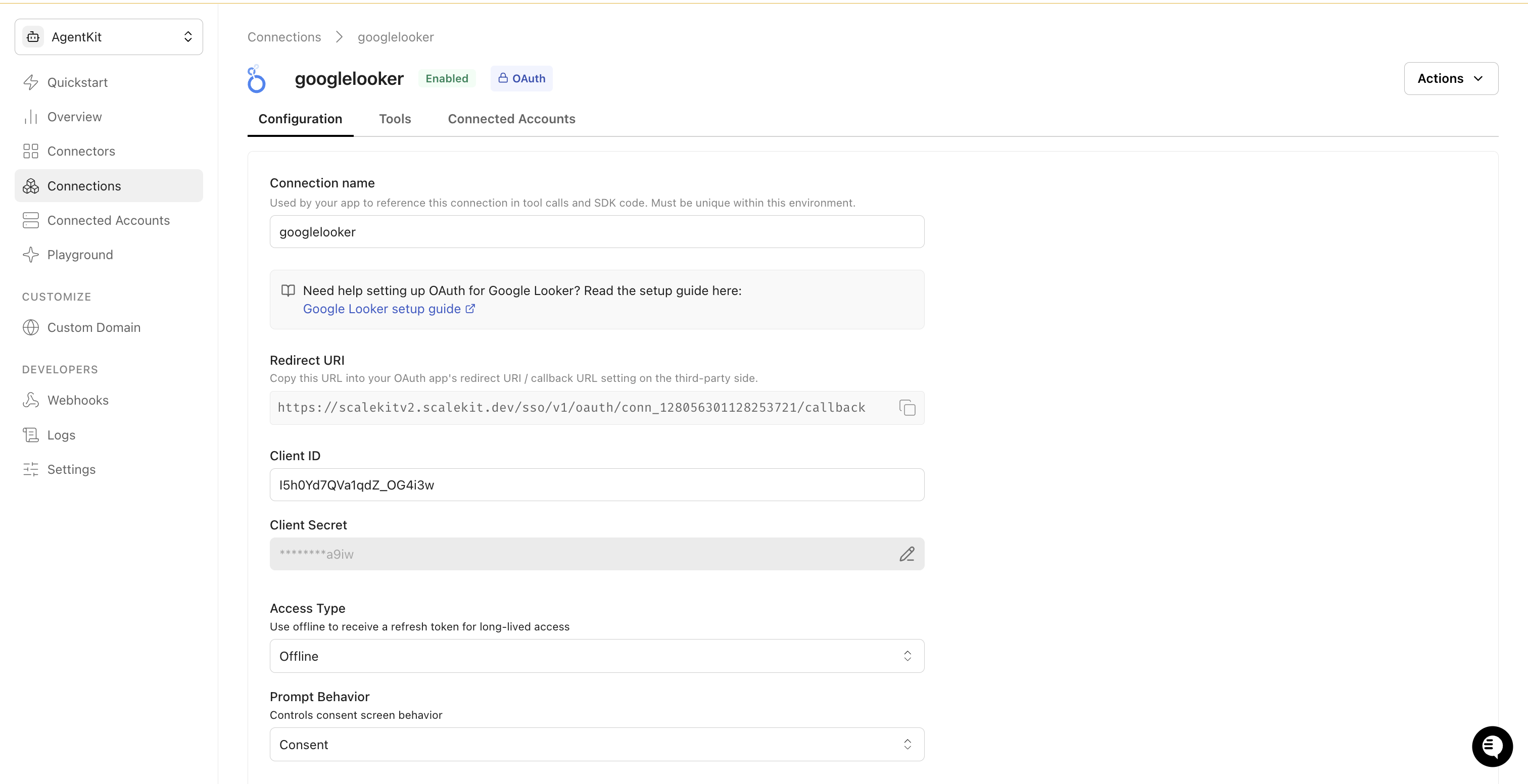
Copy the Redirect URI shown on the configuration page. Go back to Google Cloud Console and add this URI to your OAuth client’s authorized redirect URIs.
-
Return to Scalekit and enter your credentials:
- Client ID (from Google Cloud Console)
- Client Secret (from Google Cloud Console)
-
Keep Access Type set to Offline to receive a refresh token for long-lived access.
-
Click Save.
-
-
Add a connected account
Each end-user who connects their Looker instance needs a connected account. The Looker Instance Hostname is required — this is the hostname of the Looker instance the user is accessing (without
https://), for exampleyour-company.cloud.looker.com.Via the Scalekit dashboard (for testing)
- Go to Connected Accounts > Add Account.
- Enter the User ID and Looker Instance Hostname, then click Save.
- Complete the Google OAuth flow in the popup to authorize access.
Via the SDK (for production)
Generate an authorization link and redirect your user to it. After the user authorizes, Scalekit stores the token automatically.
const { link } = await scalekit.actions.getAuthorizationLink({connectionName: 'googlelooker',identifier: 'user_123',state: { instanceUrl: 'your-company.cloud.looker.com' },})// Redirect the user to `link` to complete OAuth
-
-
Authorize and make your first call
Section titled “Authorize and make your first call”quickstart.ts import { ScalekitClient } from '@scalekit-sdk/node'import 'dotenv/config'const scalekit = new ScalekitClient(process.env.SCALEKIT_ENV_URL,process.env.SCALEKIT_CLIENT_ID,process.env.SCALEKIT_CLIENT_SECRET,)const actions = scalekit.actionsconst connector = 'googlelooker'const identifier = 'user_123'// Generate an authorization link for the userconst { link } = await actions.getAuthorizationLink({ connectionName: connector, identifier })console.log('Authorize Google Looker:', link)process.stdout.write('Press Enter after authorizing...')await new Promise(r => process.stdin.once('data', r))// Make your first callconst result = await actions.executeTool({connector,identifier,toolName: 'googlelooker_list_dashboards',toolInput: {},})console.log(result)quickstart.py import osfrom scalekit.client import ScalekitClientfrom dotenv import load_dotenvload_dotenv()scalekit_client = ScalekitClient(env_url=os.getenv("SCALEKIT_ENV_URL"),client_id=os.getenv("SCALEKIT_CLIENT_ID"),client_secret=os.getenv("SCALEKIT_CLIENT_SECRET"),)actions = scalekit_client.actionsconnection_name = "googlelooker"identifier = "user_123"# Generate an authorization link for the userlink_response = actions.get_authorization_link(connection_name=connection_name,identifier=identifier,)print("Authorize Google Looker:", link_response.link)input("Press Enter after authorizing...")# Make your first callresult = actions.execute_tool(tool_input={},tool_name="googlelooker_list_dashboards",connection_name=connection_name,identifier=identifier,)print(result)
What you can do
Section titled “What you can do”Connect this agent connector to let your agent:
- Run look, inline query — Run a saved Look and return the results in the specified format
- List models, looks, folders — List all available LookML models in the Looker instance
- Get look results, dashboard — Run a saved Look and return results in the specified format
Common workflows
Section titled “Common workflows”Google OAuth consent screen verification
Before you use your own Google OAuth credentials in production, understand what end users see on Google’s consent screen when they authorize a connected account.
| Audience type | Consent screen behavior | When to use |
|---|---|---|
| Internal | Shows your App Name and logo from Branding settings | Only users in your Google Workspace or Cloud Identity organization can authorize the connector |
| External | Shows {env_name}.scalekit.dev until Google verifies your app | Any user with a Google account can authorize the connector |
Why External is required for most AgentKit connectors:
- Internal restricts authorization to users in your Google Workspace or Cloud Identity organization. Users with
@gmail.comor other Google accounts outside your organization cannot complete OAuth. - External is required when end users outside your organization authorize tool access through connected accounts.
- Organization-managed OAuth clients follow the same rules as personal or developer OAuth clients. Switching to an org-owned client does not bypass Google verification.
- Until Google completes verification of your External app, users see
scalekit.devon the consent screen. After verification, your App Name and logo appear.
During development:
- Add Test users under APIs & Services → OAuth consent screen while publishing status is Testing.
- On unverified apps, users can click Advanced → Go to app (unsafe) to proceed during testing.
- Google Workspace admins may need to allowlist your OAuth client.
For Google’s verification requirements and timeline, refer to Google’s OAuth consent screen verification guide.
Tool list
Section titled “Tool list”Use the exact tool names from the Tool list below when you call execute_tool. If you’re not sure which name to use, list the tools available for the current user first.
googlelooker_get_dashboard#Retrieve the full metadata of a Looker dashboard by its ID, including all tile definitions (charts, tables, text, filters), layout, linked Looks, and underlying queries.2 params
Retrieve the full metadata of a Looker dashboard by its ID, including all tile definitions (charts, tables, text, filters), layout, linked Looks, and underlying queries.
dashboard_idstringrequiredThe ID of the Looker dashboard to retrievefieldsstringoptionalComma-separated list of dashboard fields to include in the responsegooglelooker_get_look_results#Run a saved Look and return results in the specified format. Executes the Look's underlying query against the connected database. Use result_format to control the output: json for structured data, csv for tabular export, xlsx for Excel.14 params
Run a saved Look and return results in the specified format. Executes the Look's underlying query against the connected database. Use result_format to control the output: json for structured data, csv for tabular export, xlsx for Excel.
look_idstringrequiredThe numeric ID of the Look to fetch results fromresult_formatstringrequiredDesired output format for results. Accepted values: json, json_detail, json_bi, csv, txt, html, md, xlsx, sql, png, jpgapply_formattingbooleanoptionalApply model-specified formatting to each result valueapply_visbooleanoptionalApply visualization options to resultscachebooleanoptionalGet results from cache if available. Set to false to force a fresh database query.cache_onlybooleanoptionalRetrieve any results from cache even if expiredforce_productionbooleanoptionalOverride development mode settings to force use of production modelsgenerate_drill_linksbooleanoptionalGenerate drill links for json_detail formatimage_heightintegeroptionalRender height for image formats (png, jpg)image_widthintegeroptionalRender width for image formats (png, jpg)limitintegeroptionalMaximum number of rows to return. May override the limit in the saved query.path_prefixstringoptionalPrefix to use for drill links (URL encoded)rebuild_pdtsbooleanoptionalRebuild Persistent Derived Tables (PDTs) used in the queryserver_table_calcsbooleanoptionalPerform table calculations on query results server-sidegooglelooker_list_dashboards#List all dashboards in a Looker instance that the caller has access to. Returns dashboard metadata including ID, title, folder, description, and last updated time.1 param
List all dashboards in a Looker instance that the caller has access to. Returns dashboard metadata including ID, title, folder, description, and last updated time.
fieldsstringoptionalComma-separated list of dashboard fields to include in the responsegooglelooker_list_explores#Retrieve a LookML model by name. The response includes an explores array listing all available explores in that model. Use fields=explores to limit the response to just explore metadata.2 params
Retrieve a LookML model by name. The response includes an explores array listing all available explores in that model. Use fields=explores to limit the response to just explore metadata.
model_namestringrequiredThe LookML model name to retrieve explores forfieldsstringoptionalComma-separated list of model fields to include in the responsegooglelooker_list_folders#List all folders (spaces) in the Looker instance including personal folders. Returns folder ID, name, parent folder, creator, and content counts. Use folder IDs to filter Looks and Dashboards by location.1 param
List all folders (spaces) in the Looker instance including personal folders. Returns folder ID, name, parent folder, creator, and content counts. Use folder IDs to filter Looks and Dashboards by location.
fieldsstringoptionalComma-separated list of folder fields to include in the responsegooglelooker_list_looks#List all Looks the caller has access to. Returns Look metadata including ID, title, folder, owner, and last run time. Soft-deleted Looks are excluded.4 params
List all Looks the caller has access to. Returns Look metadata including ID, title, folder, owner, and last run time. Soft-deleted Looks are excluded.
fieldsstringoptionalComma-separated list of Look fields to include in the responselimitintegeroptionalMaximum number of Looks to returnoffsetintegeroptionalNumber of results to skip before returning anysortsstringoptionalComma-separated list of fields to sort results bygooglelooker_list_models#List all available LookML models in the Looker instance. Returns each model's name, project, allowed database connections, and explore count. Use this to discover which models and explores are available before running queries.1 param
List all available LookML models in the Looker instance. Returns each model's name, project, allowed database connections, and explore count. Use this to discover which models and explores are available before running queries.
fieldsstringoptionalComma-separated list of model fields to include in the responsegooglelooker_run_inline_query#Execute an ad-hoc query against a LookML model and explore without saving it as a Look. Specify fields, filters, sorts, and a row limit. Useful for one-off analysis and agent-driven data exploration. Complex queries may take longer; 120s timeout applied.7 params
Execute an ad-hoc query against a LookML model and explore without saving it as a Look. Specify fields, filters, sorts, and a row limit. Useful for one-off analysis and agent-driven data exploration. Complex queries may take longer; 120s timeout applied.
fieldsstringrequiredComma-separated list of LookML field names to include (e.g., orders.count,orders.total_revenue)modelstringrequiredThe LookML model name to query againstresult_formatstringrequiredOutput format for the query results. Accepted values: json, json_detail, json_bi, csv, txt, html, md, xlsx, sql, png, jpgviewstringrequiredThe explore (view) name within the model to queryfiltersobjectoptionalFilter conditions as a JSON object (field_name: filter_value pairs)limitintegeroptionalMaximum number of rows to return from the querysortsstringoptionalComma-separated list of sort fields with optional direction (e.g., orders.total_revenue desc)googlelooker_run_look#Run a saved Look and return the results in the specified format. Executes the Look's underlying query against the connected database and returns the current data.14 params
Run a saved Look and return the results in the specified format. Executes the Look's underlying query against the connected database and returns the current data.
look_idstringrequiredThe numeric ID of the Look to runresult_formatstringrequiredDesired output format for results. Accepted values: json, json_detail, csv, txt, html, md, xlsx, sql, png, jpgapply_formattingbooleanoptionalApply model-specified formatting to each result valueapply_visbooleanoptionalApply visualization options to resultscachebooleanoptionalGet results from cache if available. Set to false to force a fresh database query.cache_onlybooleanoptionalRetrieve any results from cache even if expiredforce_productionbooleanoptionalOverride development mode settings to force use of production modelsgenerate_drill_linksbooleanoptionalGenerate drill links for json_detail formatimage_heightintegeroptionalRender height for image formats (png, jpg)image_widthintegeroptionalRender width for image formats (png, jpg)limitintegeroptionalMaximum number of rows to return. May override the limit in the saved query.path_prefixstringoptionalPrefix to use for drill links (URL encoded)rebuild_pdtsbooleanoptionalRebuild Persistent Derived Tables (PDTs) used in the queryserver_table_calcsbooleanoptionalPerform table calculations on query results server-side